
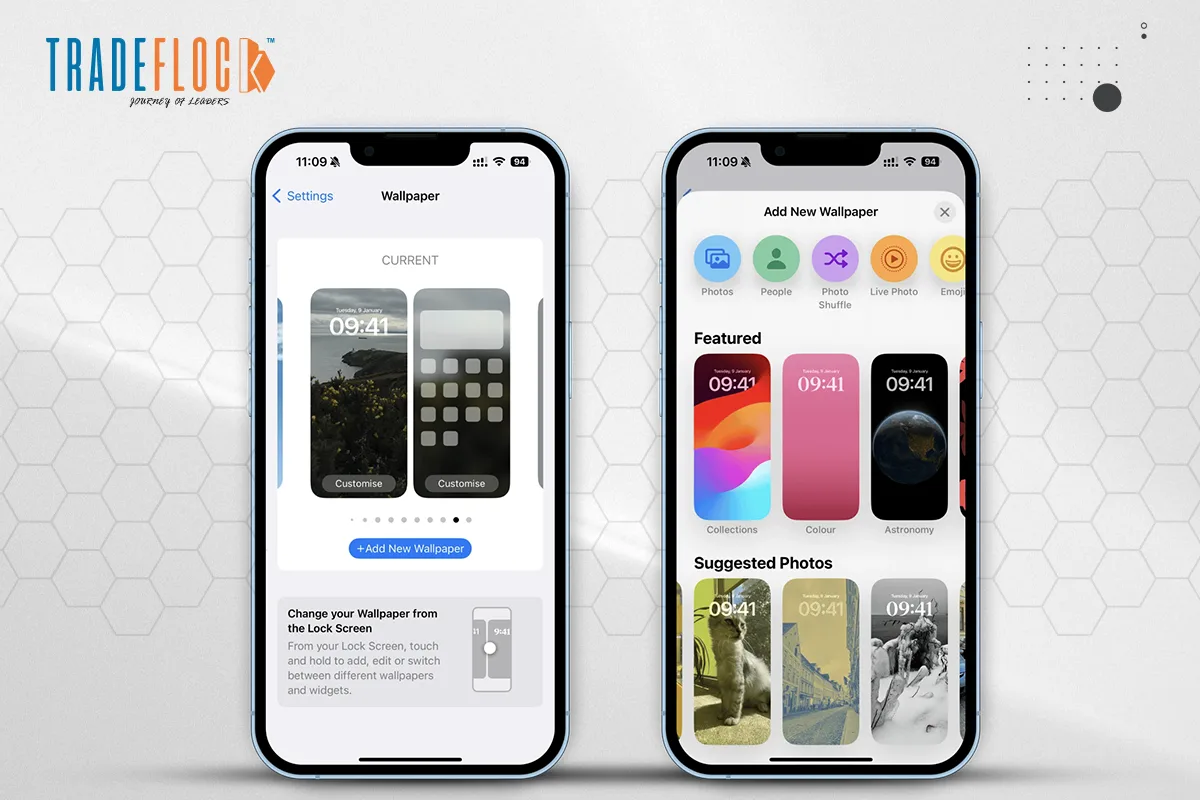
Your Lock Screen and Home Screen say a lot about your personal style. Many smartphone users like to change them regularly, especially when they come across a cool new image, such as a Batman wallpaper, or snap a fresh photo they love. However, since wallpaper settings aren’t something people adjust every day, it’s easy to forget how to delete wallpaper on iPhone.
In this blog we’ll help you understand how to delete backgrounds on iPhone, alongside wallpapers for your Lock Screen, Home Screen and Photo Shuffle border. Managing your iPhone background has never been simpler with this step-by-step guide
Let’s break down how to delete wallpaper on iPhone so you can give your device a new look without losing any of your existing widgets or layout preferences.
Table of Contents
How to Delete Wallpaper on iPhone?
Now Apple has changed the wallpaper deletion process: there’s no longer direct access to the Settings app. Here’s how you want to delete wallpaper:
- Lock your iPhone and use Face ID or Touch ID to access it.
- Stay on the Lock Screen. Long-press anywhere on the Lock Screen until the wallpaper gallery opens.
- Swipe left or swipe right until you find the wallpaper you want to delete.
- When you land on the wallpaper you want to remove, swipe up on it.
- Tap the red bin icon, and tap Delete This Wallpaper to confirm.
This is the fastest and cleanest way to control how to delete wallpaper on iPhone. This will work for the combination of both Lock and Home Screen wallpapers.
How to Delete a Photo Shuffle Wallpaper
Depending on how you’ve set it up, a Photo Shuffle wallpaper may have more than one photo in the wallpaper. If you have chosen images manually, you can remove one or more without deleting the wallpaper entirely. Now to answer your question “how to delete wallpaper on iPhone,” follow this:
- On your Lock Screen, long press until you get in to the wallpaper gallery.
- Find the Photo Shuffle wallpaper (this wallpaper type usually has a label called “PHOTO SHUFFLE”).
- When you do, tap Customise, followed by Lock Screen.
- Tap the Photo Shuffle icon in the bottom left corner.
- Select Edit or Select to choose images to remove.
- Tap the bin icon at the bottom to delete.
- Tap Done to save your changes.
This is a great method if you are wondering how to delete backgrounds on iPhone as it is part of a shuffle wallpaper.
How to Change Wallpaper Without Losing Customisation
Well if you still have query about ‘how to delete wallpaper on iPhone, ” you could also replace a wallpaper, as opposed to simply deleting a wallpaper, so that you can keep your Lock Screen layout, font choices and widgets. Here is how you can replace a wallpaper from your iPhone:
- Long-press the Lock Screen.
- Swipe to the wallpaper you want to change.
- Tap Customise, and then Lock Screen or Home Screen.
- Tap Photo Library.
- Select a new wallpaper.
- Crop, optionally add filter effects, then tap Done.
From the Wallpaper Settings, Open Settings, then go to Wallpaper.
- Swipe to the wallpaper combination you want to change.
- Tap the preview of either the Lock Screen or Home Screen.
- Tap and select a new image from the Photo Library.
- Adjust, then tap Done.
This is helpful if you’re wondering how to delete backgrounds on iPhone, but you want to maintain your layout.
How to Delete iPhone Backgrounds If Settings Look Different
- Be certain you’re running the latest version of your iPhone
- In previous iPhone versions, wallpaper changes were done through Settings > Wallpaper > Choose New Wallpaper
- You can only perform full wallpaper deletion in the Lock Screen
- So if you’re stuck on how to delete wallpaper on iPhones, your best option is to long-press the Lock Screen.
You might also like to read: What Does Optimised Battery Charging Mean for iPhone?
Note:
You can’t delete default system wallpapers – only those you have added.
Bonus Tips:
- You can save your favourite wallpapers to a separate album before deleting.
- If you’re using Photo Shuffle using an album or People selection, changing the source is better than deleting individual photos.
Managing your wallpaper gallery is now simple if you know how to delete wallpaper on iPhone. Whether you’re cleaning up old images or giving your phone a design refresh, following these steps will make the process seamless.