
You might have the best hook, the slickest footage, and a CTA that deserves a standing ovation—but if your ad isn’t framed correctly for mobile, your audience won’t even see it. The bottom line? Click-through rates live and die by the crop.
Resizing is more than just an aesthetic change in today’s performance-driven advertising environment; it’s a conversion strategy. A cut-off price slash or a cropped-out “Shop Now” button could be the difference between a sale and a scroll. Pippit is useful in this situation.
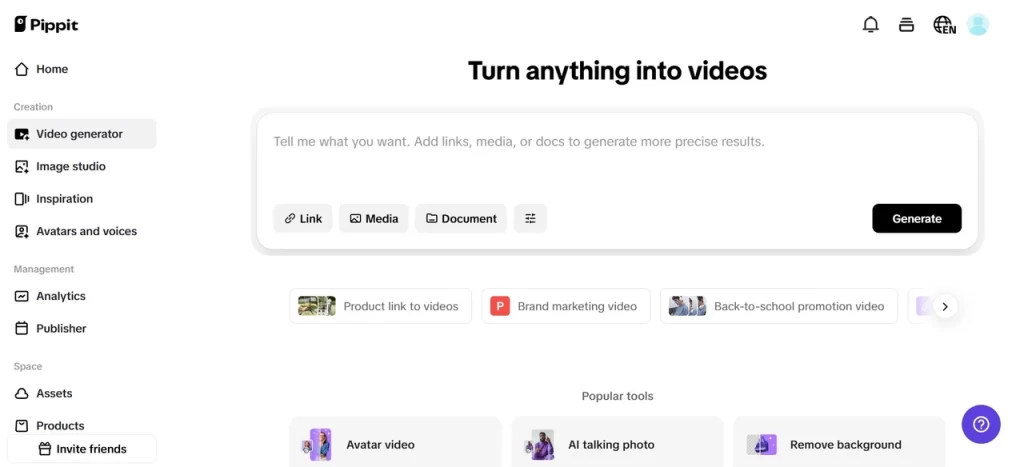
Pippit’s incredibly user-friendly AI ad generator allows companies to create and adjust ads to fit any screen, relocate calls to action to the ideal area, and modify images to meet channel-specific requirements without sacrificing their creative essence. The correct resizing can boost outcomes whether you’re creating a YouTube bumper or an Instagram Story ad.
Table of Contents
Where your CTA lives determines if anyone clicks
Let’s start with a truth bomb: most mobile viewers don’t “watch” videos—they scan. That means your CTA’s position, visibility, and timing are everything.
If it’s:
- Too low? It gets blocked by captions, buttons, or thumbs.
- Is it too small? In a sea of pixels, it disappears.
- Is it too late? The viewer has already left. For this reason, resizing is important.
Not only can you fit the screen, but you can also maximise attention by rearranging the visual hierarchy and selecting the appropriate aspect ratio.
Formats that fire up CTR (and where to place your CTAs)
Not all crops are created equal. Each format nudges the viewer’s eye in a different direction. Here’s how to match your CTA with the frame:
TikTok (9:16)
- Best CTA position: mid to top third of the screen
- Avoid: bottom 20%—it’s home to UI clutter and thumb zones
- Strategy: Place product + CTA near eye line, supported by voiceover
YouTube (16:9)
- Best CTA position: right side or end-frame card
- Avoid: bottom left—it often overlaps with branding or skip button
- Strategy: Use overlay banners during product moments, then drive CTA at end
Instagram Stories (9:16)
- Best CTA position: just above the reply bar (lower third, but not the lowest)
- Avoid: placing CTA in the top margin—viewers miss it
- Strategy: Combine on-screen CTA with voice directive (“Swipe up now“)
Facebook Feed (1:1 or 4:5)
- Best CTA position: middle or just below focal product
- Avoid: hard corners—Facebook compresses previews
- Strategy: Keep CTA visible throughout, use text overlays or stickers
By resizing strategically, you can place the action where the viewer naturally pauses, and boost your click potential without re-editing from scratch.
From edit room to performance room: why this matters
In a performance-driven campaign, every second of visibility affects metrics. And that includes:
- Click-through rate (CTR)
- Cost per click (CPC)
- Return on ad spend (ROAS)
Resizing isn’t just creative polish—it’s ROI engineering. The more frictionless your CTA looks and feels, the more likely someone is to tap it. Think of it as visual UX—an on-screen button that lives in the right space, during the right beat, framed in the right size.
How to resize videos with Pippit to maximize clicks
Here’s where automation helps. Let’s jump into the steps, know that if you’re also generating fresh content, Pippit’s video resizer allows you to create ready-to-resize video ads from scratch—with smart CTA placement built in.
Step 1: Upload your video
Choose the “Smart crop” tool when Pippit is open. You can upload your video straight from your cloud storage or smartphone. Both novices and experts may easily begin resizing videos for websites like Instagram and TikTok thanks to the user-friendly interface. Pippit starts by identifying the video’s existing layout, regardless of whether you’re working with a 1:1 testimonial clip or a wide-screen product showcase.

Step 2: Choose the aspect ratio
Select the aspect ratio you’re using for your platform, for example, 9:16 for TikTok or 16:9 for YouTube. Adjust framing and make sure the video is perfectly fit using the real-time preview. If the CTA is going to be off-screen or too low, drag it into a higher-safe zone. Pippit adjusts the video for ready-to-share across different platforms, allowing you to preview the interface overlays while cropping.

Step 3: Export & share video
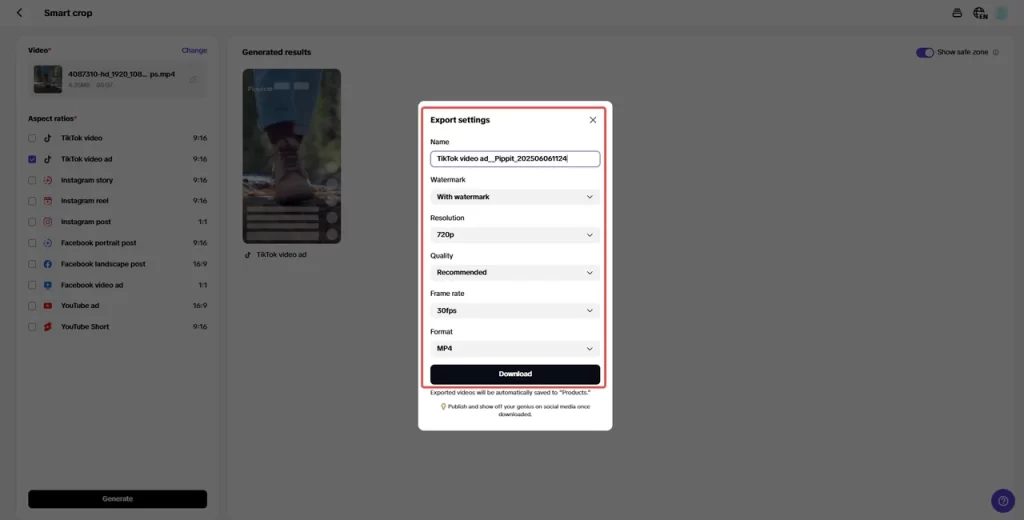
Preview your resized video to confirm quality and accuracy. Click export to save the exported video in your desired resolution. Using Pippit, you can resize videos for free online and share your videos straight to platforms such as Instagram and Facebook, watermarked-free. The end result? A CTA that’s legible, tapable, and in the right position to deliver.
From CTA confusion to conversion clarity
Let’s be honest: we’ve all seen ads where the button appears too late, or worse, not at all. You don’t want your audience to squint, swipe back, or guess what to do next. You want them to click immediately and confidently.
Resizing lets you:
- Refocus framing on your CTA
- Prevent the platform UI from hiding your action button
- Align eye movement with CTA animation or voiceover cues
And it saves you from costly re-edits or performance drop-offs. You don’t need a different video for every format—you just need a smarter crop.
Ready to turn your crop into clicks?
In an ad world that scrolls fast and expects clarity, resizing is your best performance weapon. It transforms overlooked CTAs into magnetic triggers and turns underperforming ads into channel stars.
Pippit makes it easy. Resize your videos, reposition your CTAs, and optimize your message for every screen—all in one place, without watermarks or wasted time.
Start resizing your videos with Pippit today—and give every click a perfect frame.