
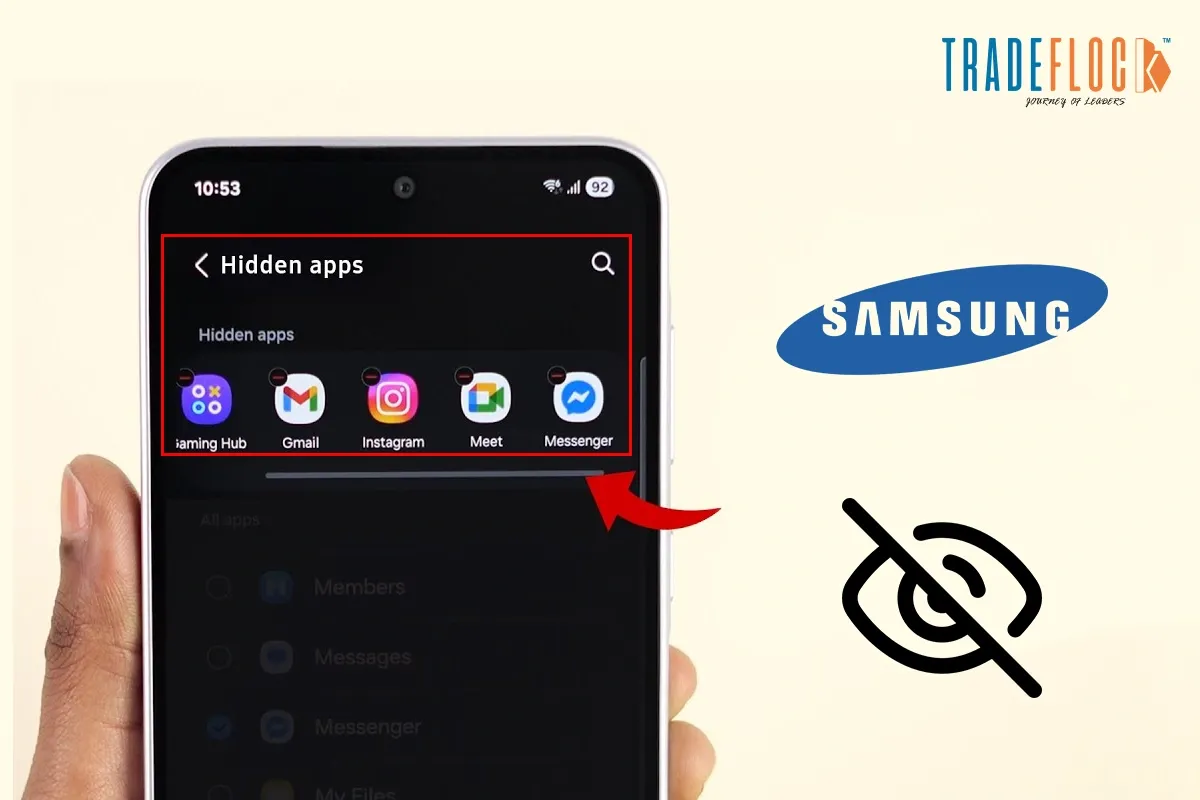
Samsung smartphones come with a wide range of customisation and privacy settings, one of which is the ability to hide apps. This feature is especially useful for keeping certain apps private, reducing clutter on your home screen, or preventing others from accessing specific apps. However, many users often find themselves searching for how to open hidden apps in Samsung when they require them back on the screen.
If you’re using a Samsung smartphone and are trying to find or open hidden apps, this guide works well. It has all the possible methods, explained step-by-step, that can help you to unhide apps in a quick, easy way. Whether the apps are hidden through Settings, Secure Folder, Launcher Options or Third-Party, you’ll find a solution here.
Table of Contents
What Are the Hidden Apps on Samsung Smartphones?
It may be a confusing term for some people. So let’s explain this before we get into how to open hidden apps in Samsung.
Hidden apps are applications installed on your phone that do not appear on the home screen or in the app drawer. They still exist on the device and continue to function normally in the background unless disabled.
Samsung allows apps to be hidden using:
- Built in One UI Settings
- Secure Folder
- Launcher Options
- Third-Party Apps
Understanding how to open hidden apps in Samsung helps in accessing them.
How to Open Hidden Apps in Samsung in Different Ways
As mentioned earlier, there are several ways to unhide hidden apps. Let’s discuss one by one.
Method 1 – Open Hidden Apps Using Samsung Home Screen Settings
This is the most common way apps are hidden on Samsung phones running One UI.
Steps:
1- Long-press on an empty area of the Home Screen
2- Tap on Settings
3- Select Hide Apps
4- You will see a list of all hidden apps
5- Tap the app you want to open or unhide
6- Tap Done
Once unhidden, the app will appear again on your app drawer and Home Screen. The process of how to open hidden apps in Samsung through the built-in One UI Settings is easy with this explanation.
Note: If you only want to open the app without unhiding it permanently, consider using the search or settings methods below.
Method 2- Open Hidden Apps Using App Drawer Search
Even if an app is hidden, it can sometimes still be accessed through the app drawer search. Let’s understand how to open hidden apps in Samsung using the app drawer search
Steps:
1- Swipe up to open the App Drawer
2- Tap the Search Bar at the top
3- Type the app’s name
Now you will see the app in the search options. Tap to open it.
Note: This may not work for apps hidden using stricter privacy options like Secure Folder.
Method 3- Open Hidden Apps Using App Via Settings
Samsung allows you to view all installed apps, including hidden ones, from the system settings. Here is how to open hidden apps in Samsung through system settings.
Steps:
1- Open Settings
2- Go to Apps
3- Scroll through the list or use the search bar
4- Select the hidden apps
5- Tap Open.
This method on how to open hidden apps in Samsung works reliably even if the app is hidden from the home screen.
Method 4- Open Hidden Apps From Secure Folder
Samsung is known for its top-notch security features. Its Secure Folder is a powerful privacy feature that completely hides apps behind biometric or PIN protection. Learn how to open hidden apps in Samsung through Secure Folder.
Steps:
1- Open Secure Folder from the app drawer or settings
2- Unlock using PIN, password or fingerprint
3- You’ll see all the apps stored inside Secure Folder
4- Tap the app to open it
If you don’t see Secure Folder-
- Go to Settings>Biometrics and Security>Secure Folder
- Enable it if it is turned off
Method 5- Open Hidden Apps From a Third-Party App
If you’re using a third-party app like Nova Launcher or Microsoft Launcher to hide apps on Samsung, it may have its own hidden app settings. For Nova Launcher:
Steps:
1- Open Nova Settings
2- Tap App Drawer
3- Select Hide Apps
4- Vide on unhide the app
This is how to open hidden apps in Samsung using different methods.
Also Read – What Does Optimised Battery Charging Mean for iPhone?
Unhide Apps Seamlessly Using Multiple Methods
Samsung smartphones offer multiple ways to hide apps for privacy, but sometimes make them difficult to find later. Fortunately, hidden apps are never gone, but they are tucked away in the Settings, Secure Folder and Launcher Options.
You just need to understand how to open hidden apps in Samsung via different methods, and you are all set to open your hidden apps.
If you regularly hide apps, consider noting where you hide them to avoid confusion in the future.